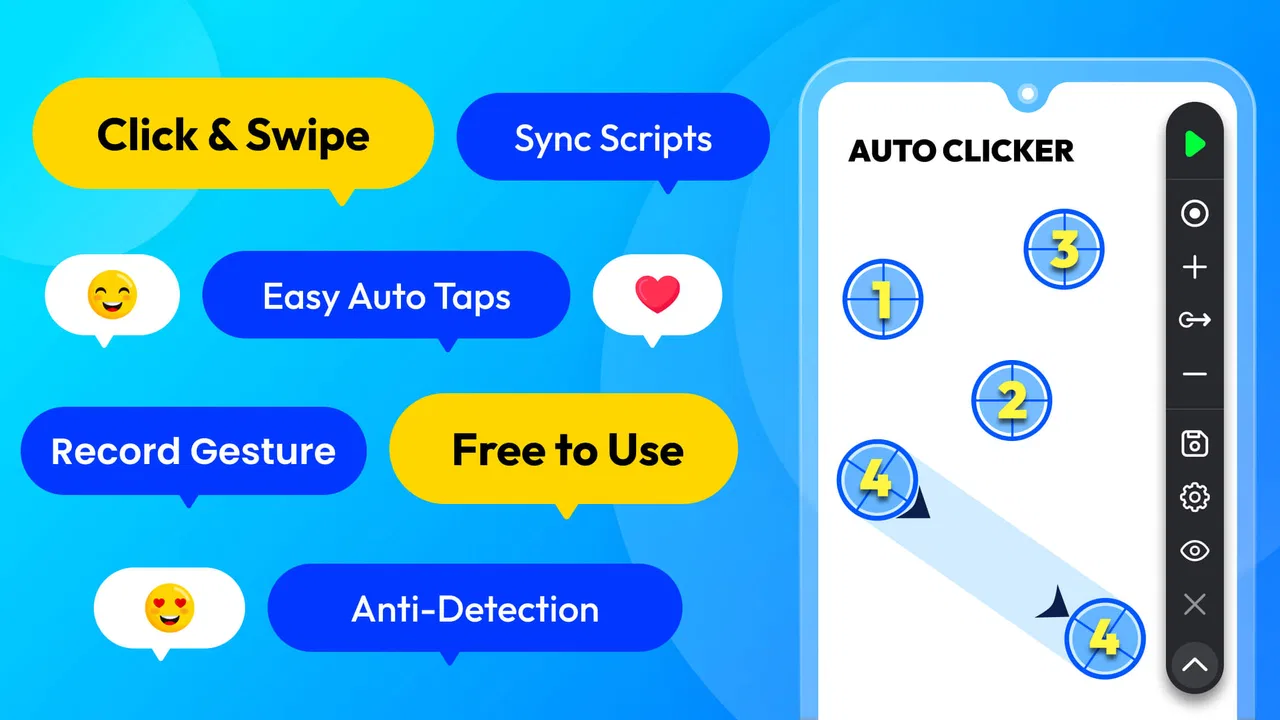
Auto Clicker: Auto Tapper
- 4.8
- Rating
- 10.00M
- Installs
- Free
- Price

 Analysis by App-foxy
Repeated tapping is one of those small phone tasks that can quietly waste a surprising amount of patience. I tested Auto Clicker: Auto Tapper as a practical Android tool rather than treating it like a novelty, and my overall impression is that it is most useful when a repetitive gesture follows a predictable pattern. It can help with routine touch actions, but it is not a universal shortcut for every app, and using it well requires more care than simply pressing a start button.
Developed by Simple Design Ltd., this free tools app is aimed at people who want to automate repeated clicks and gestures without writing scripts or connecting a computer. It is available for users aged Everyone, works from Android 8.0 onward, and has reached over ten million installs with a 4.8 average from around 378 thousand ratings. Those figures suggest that the idea is easy for many people to understand, but popularity alone is not a reason to give an automation tool unlimited access. My assessment focuses on where it gives you useful control, where it creates friction, and when a more ordinary alternative is safer or simpler.
What it feels like to use in everyday situations
The most convincing use case is a task that asks for the same tap again and again while you are already sure about the location and timing. Imagine a long form, a testing screen, or a repetitive in-app process where one button must be pressed many times. Instead of keeping your finger on the display, you can position an automated tap and let the phone handle the repetition while you monitor the result.
You May Also Like

 Blood Strike: 2.5 Anniversary
Blood Strike’s Loadouts Turn Every Drop Into a Tactical Gamble
A close look at Blood Strike’s custom loadouts: how fast access to signature weapons reshapes its battle royale rhythm, rewards preparation, and narrows the gap between fights.

 Pandora - Music & Podcasts
Pandora’s Music Is Easy to Start, but Harder to Recover
Pandora’s strength is its low-effort path from a seed to a station. Its weak spot is how much confidence it asks you to place in connection, setup, and quiet recovery.

 8 Ball Pool
 Is Built on Rivalries, Rematches, and Routine
A close look at the rivalries, rematches, shared routines, and unanswered safety questions that turn a quick pool match into a persistent mobile community.

 Samsung Music
’s Quiet Strength Is Playing What You Already Own
Its reach comes less from spectacle than from dependable access to a personal library. That simplicity is both the app’s strongest retention engine and its ceiling.

 AccuWeather: Weather Radar
AccuWeather Review: A Quick, Clear Forecast for Everyday Decisions
For everyday plans, the best forecast is the one you can understand quickly. AccuWeather makes rain timing, radar, and local conditions easy to act on, with a few trade-offs.

 Hill Climb Racing
Why Hill Climb Racing Still Turns Crashes Into One More Run
A tiny car, a bumpy hill and one more upgrade: Hill Climb Racing keeps resurfacing because its simple chaos makes every near-miss feel personal.
More From Our News Desk
View All News


I would not treat that as permission to leave the phone unattended for every situation. A tap that is harmless on one screen can become destructive after a popup appears, a page changes, or an accidental selection moves the interface. The practical rule I found most important is to begin with a short run, watch the first few cycles, and stop the action before trusting it with a longer routine. Automation saves effort only when the screen remains predictable.
The app belongs in the tools category, and that description fits better than calling it a productivity suite. Its job is narrow: automate touch input. That narrow focus is a strength because it avoids the learning curve of a full desktop macro system. It is also a limitation because it does not replace a proper workflow tool, spreadsheet automation, accessibility shortcut, or an app that already offers its own repeat function.
For a casual user, the appeal is immediate. You do not need to understand programming logic to see why a tap point, a delay, and a repeat action could be useful. For someone who regularly tests Android interfaces, checks a visual process, or handles a stable sequence of taps, the concept is more valuable than it first appears. The best results come from treating each automation as a small, controlled experiment rather than a permanent setting.
Where the simple approach works well
One practical advantage is that a touch automation app can sit between two extremes. Manually tapping is slow and tiring, while computer-based automation often demands a cable, special software, or technical setup. This app is more convenient when the entire task already happens on the phone and the target does not move.
I also see value in short accessibility-oriented routines, although users should be careful about whether the automated action genuinely helps them. Repeating a fixed tap can reduce physical effort, but it may not solve a task that requires reading changing content, making decisions, dragging accurately, or responding to unexpected prompts. The tool repeats input; it does not understand the meaning of what appears beneath the tap.
That distinction is easy to overlook. If a screen loads slowly, a fixed interval may fire too early. If an advertisement, permission prompt, or notification changes the layout, the same coordinates may land somewhere else. My useful habit is to choose the least risky screen for testing, keep the initial repetition brief, and place the tap away from controls that could delete, purchase, submit, or confirm something important.
Controls that matter more than the headline feature
The real value of an auto-tapping tool is not simply whether it can tap. It is whether I can decide exactly where, how often, and for how long the action should continue. Those choices determine whether the app feels like a controlled assistant or an unpredictable finger left on the screen.
A sensible workflow is to define one action first, observe it, then add complexity only when the first step behaves correctly. If a task needs several touch points, I would build and test them one at a time. This makes it easier to identify whether an error comes from the location, the interval, or the order of actions. It also prevents a long sequence from hiding the moment when the interface stopped matching the plan.
Timing deserves particular attention. A very short delay may look efficient, but the target app still needs time to draw its next state. A slightly slower rhythm is often more reliable than the fastest possible setting, especially on screens with loading indicators or animated transitions. In my experience, reliability is more useful than speed because a failed automated run can take longer to repair than a carefully completed manual action.
Another non-obvious trade-off is screen stability. Automation based on a fixed position is naturally sensitive to orientation changes, display scaling, split-screen layouts, and interface redesigns. Before starting, I would keep the phone in the same orientation and avoid moving between windows. If the target app changes its layout after an update, an old routine should be considered untrusted until it has been tested again.
Trust starts with visible control, not popularity
Tools that automate taps deserve a different kind of scrutiny from a simple calculator or flashlight. Their usefulness depends on interacting with other apps, so I want clear user choices before an action begins and an obvious way to stop it. I also want to know exactly which routine is active rather than discovering later that an old automation continued running.
My trust judgment here is therefore practical rather than promotional. Simple Design Ltd. presents a focused utility with a free entry point, and the current version is 1.4.6. The app has a large user base, but I would still review the Android permission screen and any in-app explanations on my own device before enabling operation. Permission names can change in meaning across Android versions, and the safest choice is to grant only what the app clearly needs for the task.
I would also avoid installing it from an unofficial package. An automation tool obtained from an unknown source creates an unnecessary trust problem because the user cannot easily tell whether the package is the same one they intended to use. The normal store route, the Android permission manager, and the app’s own visible controls are the places I would use to check what is active.
There is an important difference between “the app can perform taps” and “the app should be allowed to operate everywhere without supervision.” I am comfortable recommending the first idea for controlled tasks. I am much less comfortable recommending unattended use on banking, shopping, account-management, messaging, or deletion screens. A tool that repeats input cannot distinguish a harmless button from a costly one unless the surrounding app provides that protection.
Data-sensitive moments deserve extra care
Any automation session can expose sensitive information simply because the phone may display it while the routine is running. The risk is not limited to what the tapper itself does. If the target screen contains messages, account details, private documents, or payment choices, leaving an automated process active can increase the chance of an unintended action.
For that reason, I would never use a tap routine as a substitute for reviewing a transaction or approving an account change. I would also close unrelated apps, hide sensitive notifications where possible, and stay near the phone during the first run. These are not dramatic precautions; they are sensible boundaries for software that sends input into another app.
Data practices should be judged through the choices actually shown on the device, not through assumptions. Before using the tool, I would read its permission prompts and any privacy or consent screens, then check Android’s permission controls afterward. If a request seems unrelated to automated tapping, I would pause rather than accept it automatically. The app’s free price does not remove the need to understand what access is being requested.
The same caution applies to in-app purchases. The app is free to download, while optional purchases are listed at $1.99 per item. I would make sure purchase confirmation is protected on the device, particularly if someone else can access the phone. A utility that saves time should not introduce an avoidable billing surprise through an unattended screen or an accidental tap.
Keeping the user in charge
The strongest way to use this app is to make the automation temporary, visible, and easy to interrupt. I recommend preparing the target screen first, checking the tap location against the actual button, running the shortest useful sequence, and watching the result. If the screen changes, stop and rebuild the routine instead of trying to compensate with more speed.
It is also worth separating “repeat” from “decide.” I would make the decision manually, then use the app only for the mechanical part that follows. For example, if a process requires confirming that a page is correct before pressing the same control repeatedly, I would inspect the page myself before starting. This keeps the app in a supporting role rather than allowing it to make assumptions about changing content.
Stopping access when it is no longer needed is another good habit. Android’s settings can be used to review permissions and disable access that is not required anymore. I would also remove or disable old routines that no longer match the current layout. A stale automation is not useful just because it once worked; it may become dangerous after an interface change.
Users who need automation across many apps may prefer a more powerful accessibility or macro solution with conditions, variables, and event-based triggers. That kind of software can respond to more than a fixed position, but it usually takes longer to learn and may require broader access. Users who only need a single repeated action may find this app easier, provided they accept the limits of coordinate-based repetition and remain present.
Who should use it, and who should skip it
I would recommend it to Android users with a stable, repetitive touch task and enough attention to supervise the first attempts. It is especially suitable when the task is annoying rather than intellectually difficult: the screen is known, the action is repetitive, and the consequence of stopping is minor. It can also be a convenient way to test an interaction without physically tapping the same point for an extended period.
I would steer away from it if your task depends on recognizing text, waiting for a particular result, adapting to changing layouts, or making a decision at each step. A fixed tap sequence is the wrong tool for a dynamic workflow. I would also suggest a different option if you need detailed logs, conditional logic, cross-device control, or dependable unattended operation. Those needs call for a more specialized automation system, not simply more repetitions.
Gamers should be particularly thoughtful. Some games prohibit automated input, and using a tapper can affect fair play or risk an account action under the game’s own rules. The same principle applies to services that detect unusual interaction patterns. I would check the relevant terms before using automation, rather than assuming that a technically possible action is an allowed one.
People concerned about privacy should not treat a high rating as a substitute for permission review. The app’s 4.8 average and roughly 7.9 thousand written reviews indicate strong user satisfaction, but neither number tells me what access is appropriate for my particular phone. I would make the decision based on the permission prompts, the target app, and whether I can keep the session supervised.
My verdict after weighing convenience against control
Auto Clicker: Auto Tapper is a focused solution for a narrow problem: repeating predictable taps without wearing out your finger. I like the straightforward idea and the low barrier to entry, and I can see why a free Android tool with support beginning at Android 8.0 has attracted such a broad audience. Its usefulness is real when the screen stays still and the user remains involved.
My reservations are just as practical. Fixed touch automation can become unreliable after a layout change, a slow load, a popup, or a rotation. It can also send an unintended command if I leave it running on a sensitive screen. The app should therefore be treated as a controlled input aid, not as an intelligent assistant that understands context.
If your need is a short, repeatable action and you are willing to test it carefully, I think this is a reasonable app to try. Start slowly, review permissions, protect purchases, avoid sensitive screens, and stop the routine whenever the interface changes. If you need conditional automation or hands-off reliability, choose a more advanced tool instead. For me, that balance is the honest recommendation: useful for repetitive work, but trustworthy only when the user stays firmly in control.
FAQs for Auto Clicker: Auto Tapper
01What is Auto Clicker: Auto Tapper used for?
Auto Clicker: Auto Tapper is designed to automate repeated taps on your Android screen. After choosing a location, tapping interval, and number of repetitions, the app can perform those touches for you. It may be useful for repetitive actions in games, testing interfaces, browsing, or accessibility-related tasks, although its usefulness depends on the permissions and features supported by your device.
02Does Auto Clicker: Auto Tapper require root access?
In most cases, Auto Clicker: Auto Tapper is intended to work without root access. It generally relies on Android’s Accessibility Service to simulate taps over other applications. During setup, you must enable the requested accessibility permission in Android settings. Because Android versions and app editions can differ, it is worth checking the permission description carefully and disabling the service whenever you are not using the auto-tapping functions.
03How do I set up automatic taps in Auto Clicker: Auto Tapper?
After opening the app, you typically need to activate its accessibility service and then use the on-screen control panel to add one or more tap points. You can adjust the delay between taps, repetition count, and, when available, gestures or sequences. Start with a slower interval to test the result, because very rapid tapping may not be recognized correctly by every app or device.
04Is Auto Clicker: Auto Tapper safe to use with games and other apps?
The app can be convenient, but safety depends on how and where it is used. Some games and online services prohibit automated input and may treat it as cheating, potentially leading to warnings or account restrictions. Avoid using it in banking, shopping, messaging, or other sensitive applications. Review the permissions requested, download only from a trusted source, and turn off accessibility access when the tool is no longer needed.
05Does Auto Clicker: Auto Tapper work on every Android device and application?
Compatibility is not guaranteed across every phone, Android version, screen layout, or application. Some apps block simulated touches, ignore taps made through accessibility services, or change their interface so saved positions no longer match. Battery optimization can also interrupt the service during long sessions. If taps are inaccurate, check overlay and accessibility permissions, keep the screen active, and recalibrate the tap locations.
Pros
- Simple interface makes tap automation easy for beginners.
- Supports adjustable tap intervals for different tasks.
- Can automate repeated gestures without requiring root access.
- Floating controls allow quick access while using other apps.
- Useful for testing
- gaming
- and repetitive touchscreen actions.
Cons
- Some features may be restricted behind ads or in-app purchases.
- Accessibility permissions can raise privacy concerns for some users.
- Automation may stop when the screen locks or the app is closed.
- Certain games and apps may detect or block automated taps.
- Continuous tapping can drain the battery and increase device heat.

Auto Clicker: Auto Tapper
Gallery